Quick Links
The world ofThe Sims 4is beautiful, filled with grassy parks, big cities, and Sims from every walk of life. Even the base game is pretty to look at. However, it’s not unusual to want games to look even better, and that’s where reshade comes in. Reshade can completely change how your game looks.
Reshades are just one part of the vibrant modding community The Sims 4 has. They can completely change your visual experience when playing the game, and make for some incredible in-game screenshots and photos.

What Is Reshade For Sims 4?
Reshade is a program that lets you change the graphics and overlay effects of The Sims 4.It can be used for a variety of games to improve graphics, but it is widely known for The Sims.
In The Sims 4, it can change the sharpness of the graphics, the shadows, the color overlays, and more. It is used by many Simmers to make the game look better, or evoke a certain mood.
Reshade will often break when the game is updated. Before installing base game patches it’s recommended that you backup your saves and remove Reshade. A compatible new version will usually be available shortly after the game patch drops.
Reshade from Crosire can be downloaded fromReShade.mehome page. This will download the program setup to your computer. Open the setup to begin the installation process.

Reshade is a program that attaches to The Sims 4, rather than a mod for it. This means you do not have to put Reshade in your Mods folder.
When installing,you will get a pop-up that goes through the installation processstep by step with you.
First, you will select a game or application to install Reshade on.Choose The Sims 4 from the list. If it isn’t appearing,choose Browse and find the exe filefor the game on your computer. Hit next.
If you’re having trouble finding the exe file, right-click The Sims 4 icon on your desktop and select Open file location. This will show you where the file location is.
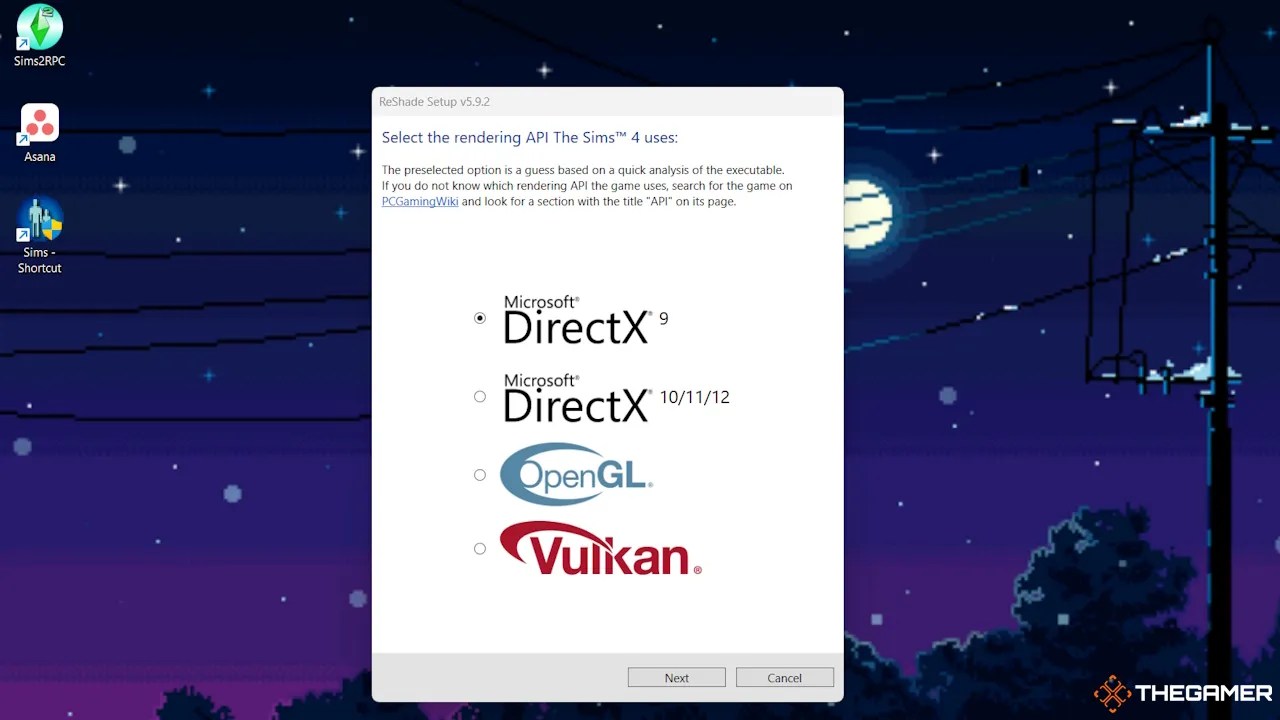
Next, you’ll need to select the rendering API.Choose Microsoft DirectX 9, which is the default option. Hit next.
How To Install Effect Packages
You can skip the next step, which is installing presets. This is only if you already have a preset reshade, which is a set of effect packages already selected.
The creator of a preset will give instructions for installing the preset if you decide to use one.
If you want to use a preset,Tumblr is a great place to find them. Simply look up ‘Sims 4 Reshade’ on the site and tons of creator posts showcasing their presets will be available.
Next is selecting effect packages. For the most variety,you will want to install all of them. HitUncheck allin the top-right corner of the installer, thenCheck all. This will give you all the effect packages in your game.
However, be aware that the more effect packages you install, the more strain it will put on your system.It can slow down your gameif you have too many.
Once you have the effect packages you want, hit next.
Reshade will then finish the installation, and you will be able to find it in your game.
How To Use Reshade
Once Reshade finishes installing, load up The Sims 4. In your game, at the top,you’ll now see a black bar that tells you Reshade has been installed. This will disappear during regular gameplay.
Load up any save file. Then, use theHome keyto bring up the Reshade menu. From here, Reshade will give you an in-game tutorial on how to use it.
You are able toselect any effect package you would like to use on the Home tab. There are plenty of options to choose from, and you’re able to try out different effect packages together to create a look that you enjoy.
Click the box next to the effect you’d like to try, and it will alter the appearance of your game.
By pressing theright and left arrow buttons at the top of the menu, you can set multiple Reshade presets to use. You can set different effects for each preset. This way, you can have multiple looks to enjoy, to change how your game looks at any time.
There is also aSettings tab, where you can set a hotkey to toggle the Reshade effect, and change the hotkey to open the Reshade menu if you want. You can also set hotkeys to cycle between presets.
Once you’re finished setting up your Reshade, you can hit theHome key again to exit the Reshade menu. From now on, theReshade will stay toggled on during gameplayand will turn on by default whenever you start the game.
